Boost FPS with MultiMeshInstance2D Godot 4 Without Lag
Learn how to configure MultiMeshInstance2D Godot 4 to slash thousands of draw calls down to one and keep your 2D game running at a smooth 60 FPS.

When a 2D project transitions from a simple prototype into a commercial bullet hell game, a strategy title with hundreds of active units, or a crowd simulation, the onscreen object count skyrockets. In Godot 4.7.2, instantiating thousands of Sprite2D or Node2D nodes causes a massive drop in frames per second. The bottleneck rarely stems from GPU fill rate or shader logic; instead, it comes from massive overhead between the CPU and graphics driver. Implementing a multimeshinstance2d godot 4 setup is the game-changer you need to replace thousands of individual render instructions with a single batched draw call, keeping your frame rate locked at 60 FPS or higher.
In this guide, you'll learn the mechanics behind draw calls in the Godot 4 ecosystem, how to configure a MultiMeshInstance2D node programmatically, and how to update real-time positions, rotations, and custom instance data without choking GDScript's main thread.
Why Thousands of Sprite2D Nodes Destroy Godot 4 Performance
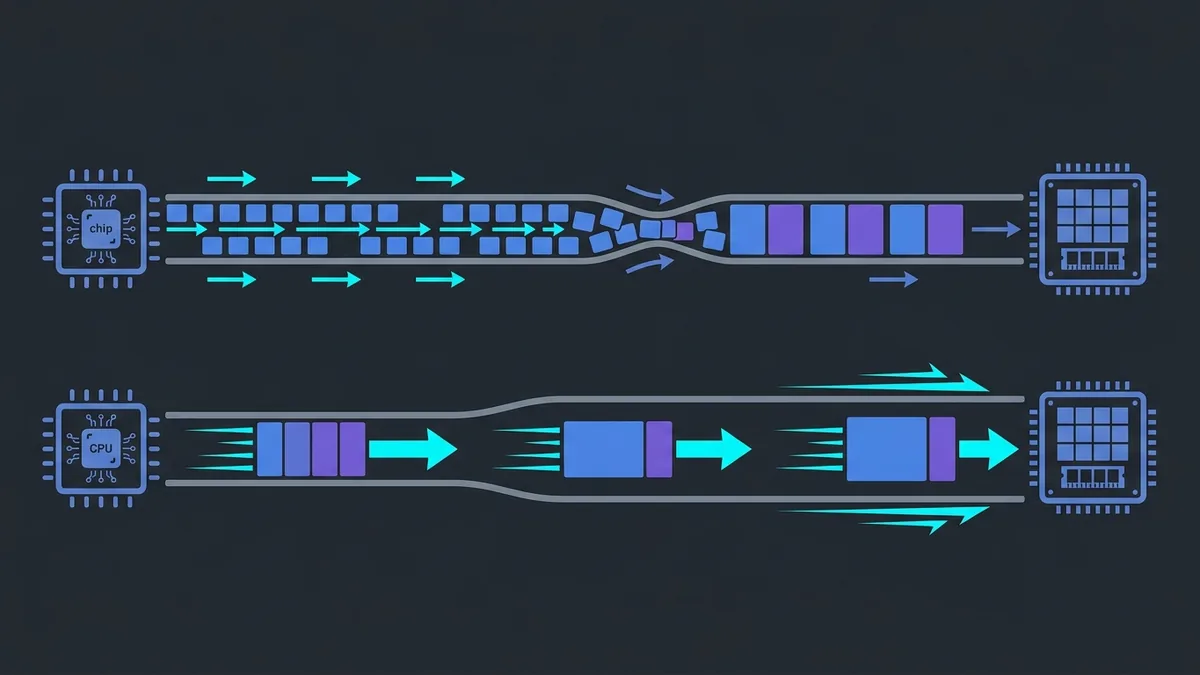
In Godot's traditional scene tree model, every Sprite2D node added to the scene tree maintains its own transform matrix, visibility flags, z-index ordering, and node lifecycle processing. Whenever the engine prepares a frame for rendering, it must traverse the scene tree, calculate each object's global transform matrix on the CPU, and issue an individual render instruction to the graphics pipeline. This CPU-to-GPU instruction is called a draw call.
When your scene contains 50 objects, issuing individual commands introduces negligible overhead. However, once you hit 5,000 to 10,000 individual sprites, the CPU spends almost all its processing time constructing render commands and pushing small memory blocks across the system bus before the GPU even begins rasterizing pixels. The CPU-to-driver communication becomes the primary bottleneck.
The MultiMeshInstance2D node resolves this structural bottleneck using a technique called instanced rendering. Instead of submitting thousands of draw calls with a single sprite each, Godot passes the geometry of a single quad mesh (two triangles) along with a contiguous memory buffer containing the transform matrices for all instances. The GPU reads this single array and draws thousands of copies of the same texture in one draw call, eliminating per-object submission costs.
How to Use MultiMeshInstance2D Godot 4 to Render Thousands of Sprites
To implement instanced rendering efficiently, constructing the node and its underlying data resource via code is the best approach. This eliminates rigid editor dependencies when instance counts need to change dynamically at runtime.
While MultiMeshInstance2D serves as the visual node inside your scene tree, the underlying data allocation is handled by an internal resource called MultiMesh. This resource must be created, assigned base geometry (typically a QuadMesh), and allocated an explicit instance capacity.
Below is a complete GDScript snippet that builds a swarm renderer capable of allocating and initializing 20,000 2D elements on screen:
extends MultiMeshInstance2D

@export var texture_atlas: Texture2D
@export var instance_count: int = 20000
@export var sprite_size: Vector2 = Vector2(16, 16)

func _ready() -> void:
    _setup_multimesh()

func _setup_multimesh() -> void:
    # Create and configure the internal MultiMesh resource
    var multimesh_resource := MultiMesh.new()

    # Set dimensions for 2D rendering (transforms use 2D matrices)
    multimesh_resource.transform_format = MultiMesh.TRANSFORM_2D
    multimesh_resource.use_colors = true
    multimesh_resource.use_custom_data = false

    # Define the base 2D quad geometry
    var quad_mesh := QuadMesh.new()
    quad_mesh.size = sprite_size
    multimesh_resource.mesh = quad_mesh

    # Allocate memory buffer for instances
    multimesh_resource.instance_count = instance_count

    # Assign the MultiMesh resource to this MultiMeshInstance2D node
    self.multimesh = multimesh_resource
    self.texture = texture_atlas

    # Populate initial positions and properties
    _populate_initial_transforms()

func _populate_initial_transforms() -> void:
    var mm := self.multimesh
    var screen_size := get_viewport_rect().size

    for i in range(mm.instance_count):
        var random_pos := Vector2(
            randf() * screen_size.x,
            randf() * screen_size.y
        )
        var random_rotation := randf() * TAU
        var random_scale := Vector2.ONE * randf_range(0.8, 1.2)

        # Build Transform2D: origin, rotation, scale
        var transform_2d := Transform2D(random_rotation, random_scale, 0.0, random_pos)

        mm.set_instance_transform_2d(i, transform_2d)
        mm.set_instance_color(i, Color(randf(), randf(), randf(), 1.0))
In the code above, we set transform_format to TRANSFORM_2D. This tells the engine to use compact 2D matrices (storing only 2D origin, scale, and rotation), saving GPU memory bandwidth compared to full 3D transform matrices.
How to Update Instance Positions and Data Without Choking the CPU
Generating static instances is straightforward. However, real-world games feature dynamic projectiles, particles, and enemy swarms that move every frame. Running a simple GDScript loop using set_instance_transform_2d to update 50,000 instances inside _process(delta) will drop frame rates fast — not because of graphics driver draw calls, but due to CPU overhead in GDScript bytecode interpretation.
To optimize high-volume transform updates, consider these architecture strategies:
1. Update Only Active or On-Screen Instances
Avoid calling transform updates on instances outside the camera view (manual frustum culling) or on inactive particles. Keep a list of active indices and loop only across visible elements.
2. Batch Raw Buffers via C++ or GDExtension for Extreme Counts
When dealing with over 50,000 dynamic objects driving complex movement or game logic, updating transforms in GDScript hits script interpretation limits. Offloading math operations to C++ via GDExtension or using Compute Shaders to manipulate transform buffers directly in VRAM removes CPU stalls completely.
3. Use CanvasItem Shaders for Visual Animations
Instead of updating particle positions or colors on the CPU via script every frame, pass global parameters (like time or attractor coordinates) into a custom canvas_item shader. Let the GPU displace and animate vertices directly based on INSTANCE_ID.
Below is an example 2D GLSL shader in Godot that animates instances in a wave pattern directly on the GPU, skipping GDScript loops entirely:
shader_type canvas_item;

uniform float wave_speed = 2.0;
uniform float wave_amplitude = 10.0;

void vertex() {
    // Modulate y position based on instance ID and global time
    float offset = sin(TIME * wave_speed + float(INSTANCE_ID) * 0.1) * wave_amplitude;
    VERTEX.y += offset;
}
The table below breaks down performance metrics and overhead across rendering techniques in Godot 4.7.2:
| Godot 4 Approach | Draw Calls for 10,000 Objects | CPU Overhead | VRAM Usage | Node & Signal Flexibility |
|---|---|---|---|---|
| Multiple Sprite2D | ~10,000 calls | Extremely High | Low | Full (Physics, Tree, Signals) |
| Node2D with custom _draw() | ~1 to 100 calls (with batching) | High (GDScript Loops) | Low | Medium (Logic on Parent Node) |
| MultiMeshInstance2D | 1 single call | Minimal | Very Low | Limited (No Individual Nodes) |
Handling Collisions and Physics with MultiMeshInstance2D
Because MultiMeshInstance2D manages instance transforms purely as visual data inside a memory buffer, individual instances are not scene tree nodes. Consequently, they don't include attached CollisionShape2D or Area2D nodes.
In bullet hell games or crowd simulations where thousands of instances must register collisions against players or environment bounds, instantiating 20,000 collision nodes would negate all performance gains from instanced rendering. The proper solution is decoupling physics from the scene tree:
- Direct PhysicsServer2D API: Allocate lightweight collision shapes directly through the
PhysicsServer2Dlow-level API without spawning nodes. Godot's 2D physics server is implemented in optimized C++ and handles simple shape queries in parallel efficiently. - Proximity Grids (Spatial Hashing): For basic projectile-to-player collision checks, write a lightweight spatial hash grid in code to query distance between target entities and array positions stored in the
MultiMeshbuffer, bypassing the traditional physics pipeline.

Common MultiMeshInstance2D Setup Pitfalls and How to Avoid Them
When working with MultiMeshInstance2D, a few common mistakes can cause instances to disappear or behave unexpectedly. Keep an eye out for these traps:
- Forgetting to Assign Mesh and Texture Properties: A
MultiMeshInstance2Dnode requires ameshresource assigned inside itsMultiMesh(e.g.,QuadMesh) and a texture assigned directly to thetextureproperty of theMultiMeshInstance2Dnode itself. - Re-setting instance_count After Populating Data: Changing the
instance_countproperty on aMultiMeshresource completely resets the underlying memory buffer. Always configure total instance capacity before calling buffer setters likeset_instance_transform_2dorset_instance_color. - Failing to Enable Resource Flags Before Buffer Allocation: If your project requires per-instance colors or custom shader data, set
use_colors = trueoruse_custom_data = truebefore assigninginstance_count. Modifying these flags afterward forces a buffer reallocation and clears existing data. - Ignoring Z-Index and Draw Order:
MultiMeshInstance2Drenders instances strictly in index order (from index 0 up toinstance_count - 1). If your game relies on dynamic depth sorting (Y-sorting), you must sort your instance data array by Y coordinate before writing transform matrices into the GPU buffer.
Conclusion
Mastering instanced rendering in Godot is an essential skill for developers looking to build complex, fluid, and visually stunning games without hitting CPU bottlenecks. Implementing multimeshinstance2d godot 4 workflows ensures that your rendering pipeline executes thousands of visual elements at the cost of a single draw call, maintaining smooth, stutter-free performance even during heavy screen action.
By pairing instanced rendering with shader-based updates or optimized PhysicsServer2D calls, your 2D game gains plenty of performance headroom to focus on what matters most: responsive gameplay mechanics and vibrant visual design.